Log in via the ETN App or my.electroneum.com to retrieve your Private Key.
Once you receive your Private Key, you will no longer have access to your ETN App wallet or my.electroneum.com (your funds will now be back in your direct control, allowing you to access them via third party ETN compatible wallets).
At this point, the wallet will be removed from your ETN App wallet and my.electroneum.com and removed from the ETN-Network. Support for it can no longer be provided.
Any future access to this wallet will only be through your chosen third party provider.
You may be required to complete KYC before you can download your Private Key.
Step 1 – Invitation to download your private key
You will have received an email inviting you to download your private key, which is available here. Alternatively, you’ll see a button inviting you to complete this process in my.electroneum.com or the ETN app.
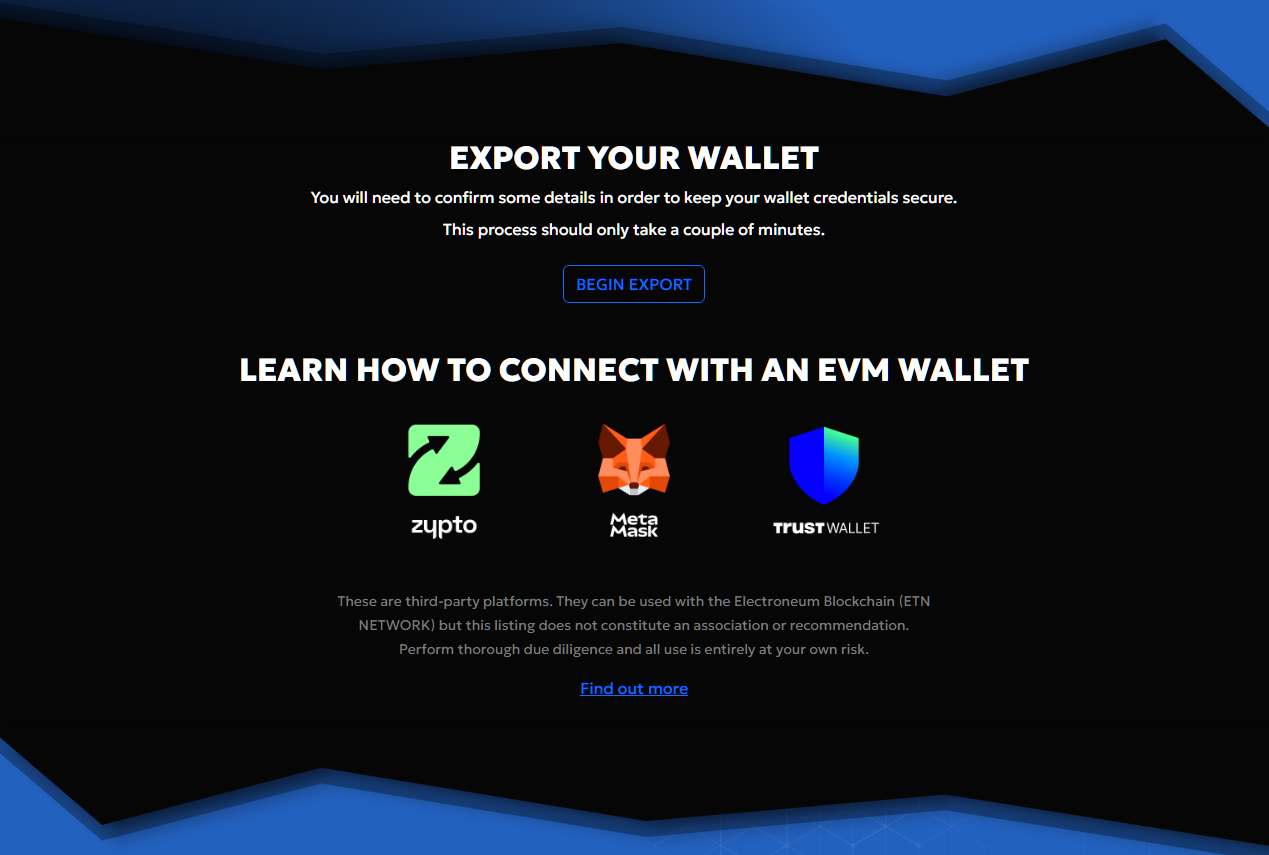
Step 2 – Email confirmation
To help confirm that you are authorized to retrieve the private key for this account, you will need to confirm your intent via the email address that is associated with your account.
After clicking the SEND CONFIRMATION EMAIL button, an email will be sent which contains a confirmation code.
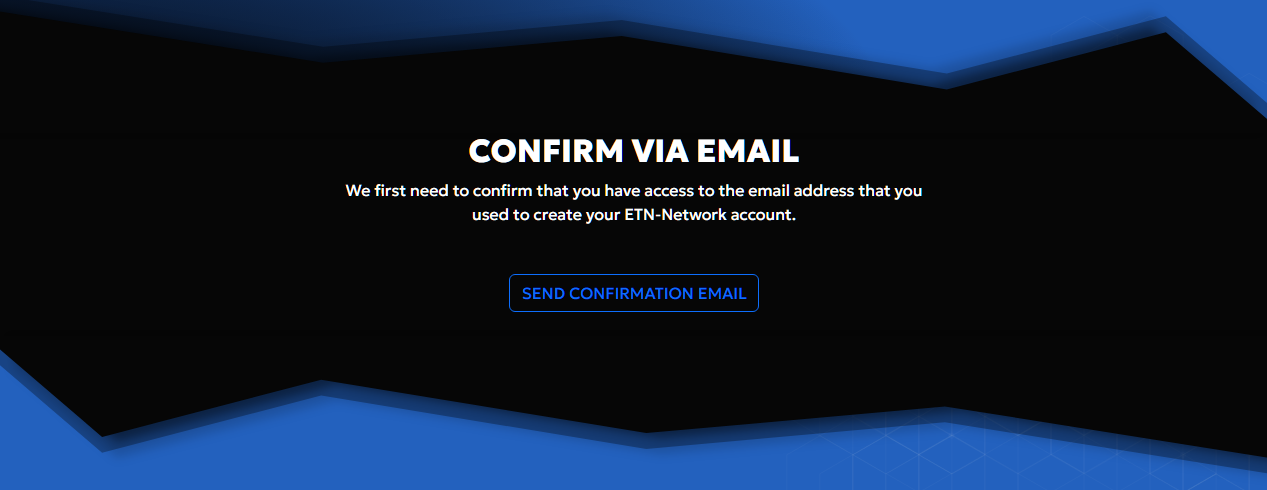
Step 3 – Enter confirmation code
Add the confirmation code that you received and click the SUBMIT CONFIRMATION CODE button.
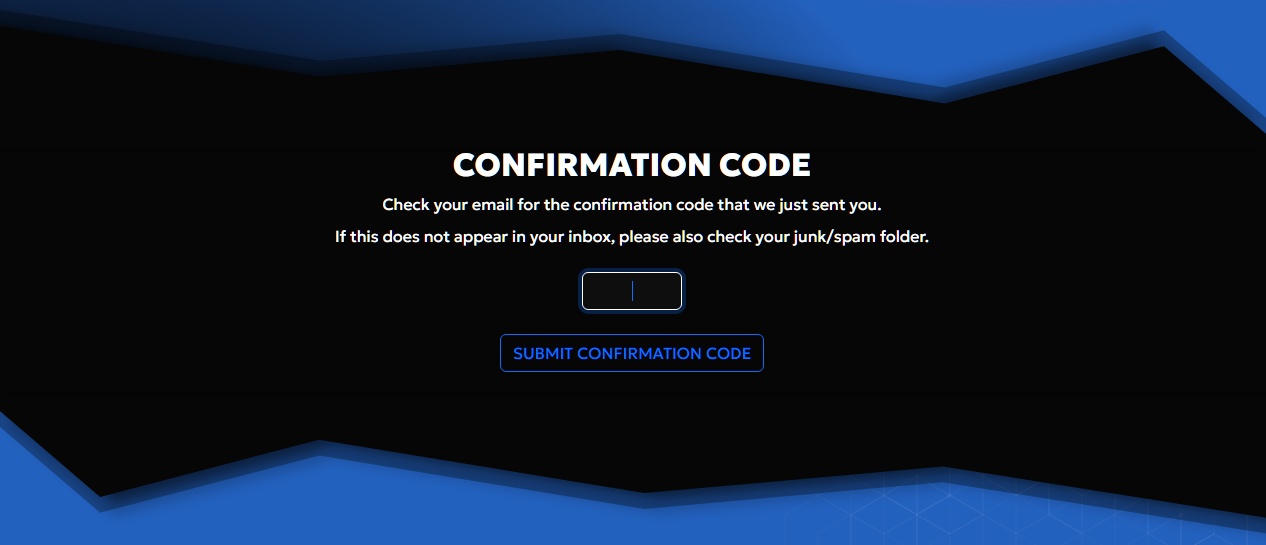
Step 4 – Identity check (not always applicable)
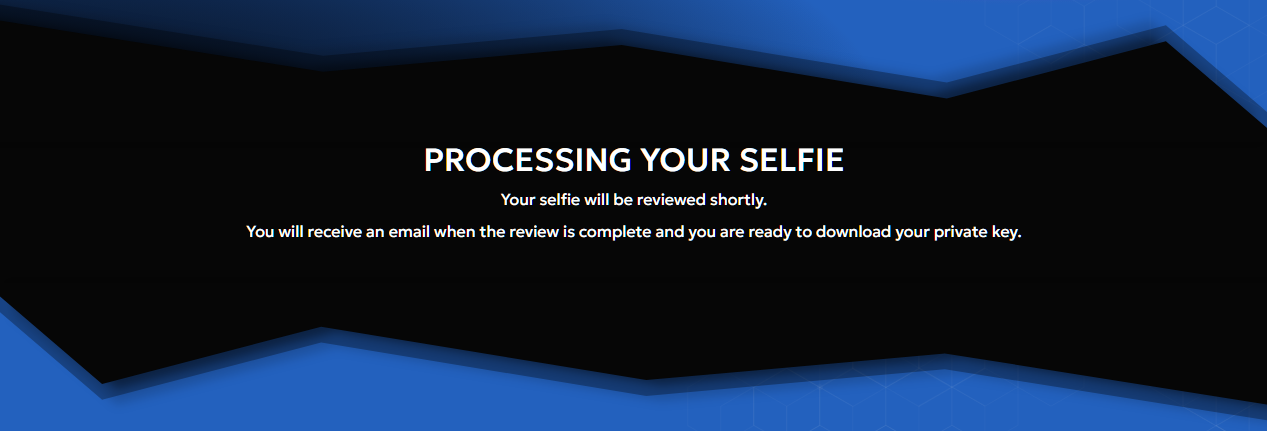
We may need to check your identity and may ask you to provide a selfie. You will be able to use your camera or upload a file that contains your selfie.
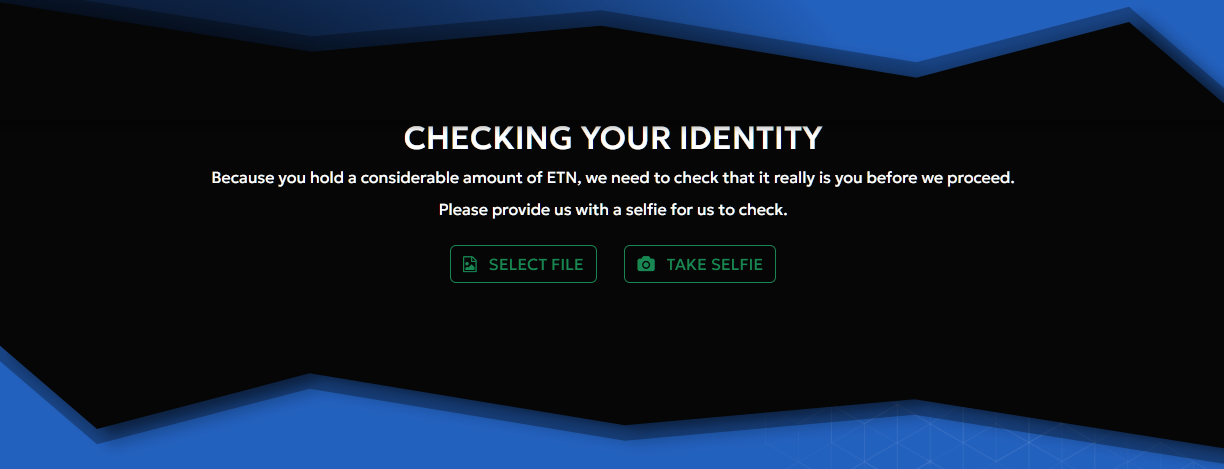
You will need to wait a short period of time for the identity check to complete. Once finished, you will be forwarded to the next step in the download process.
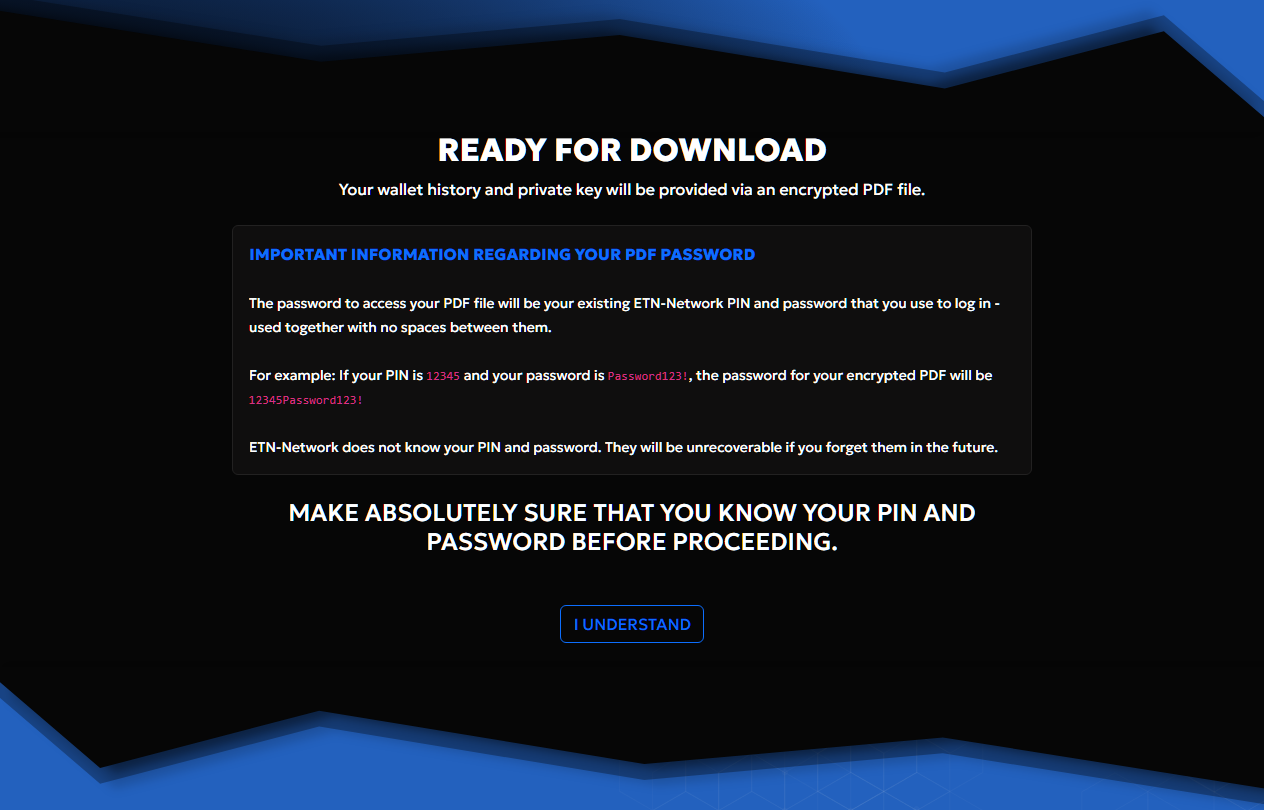
Step 5 – Understanding how your PDF will be encrypted
Your private key will be provided as an encrypted PDF.
Read through the explanation so that you understand how to gain access to your document once it has been downloaded. When ready, click the I UNDERSTAND button.
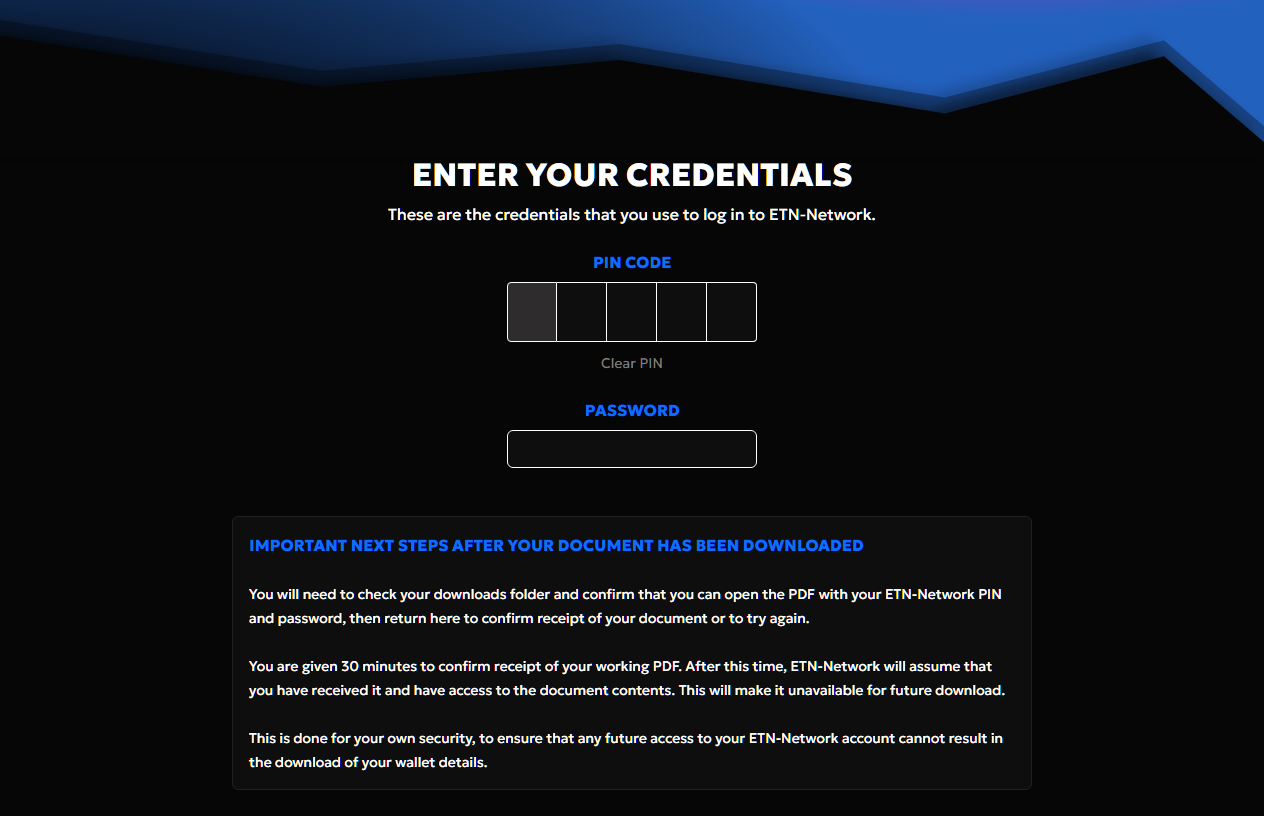
Step 6 – Enter your PIN and password
This is the download step.
Enter your PIN and password for verification.
If you have entered these correctly, your PDF will be downloaded to your device.
If the PIN or password is submitted too many times incorrectly, you will have to wait a short period of time before being able to try again.
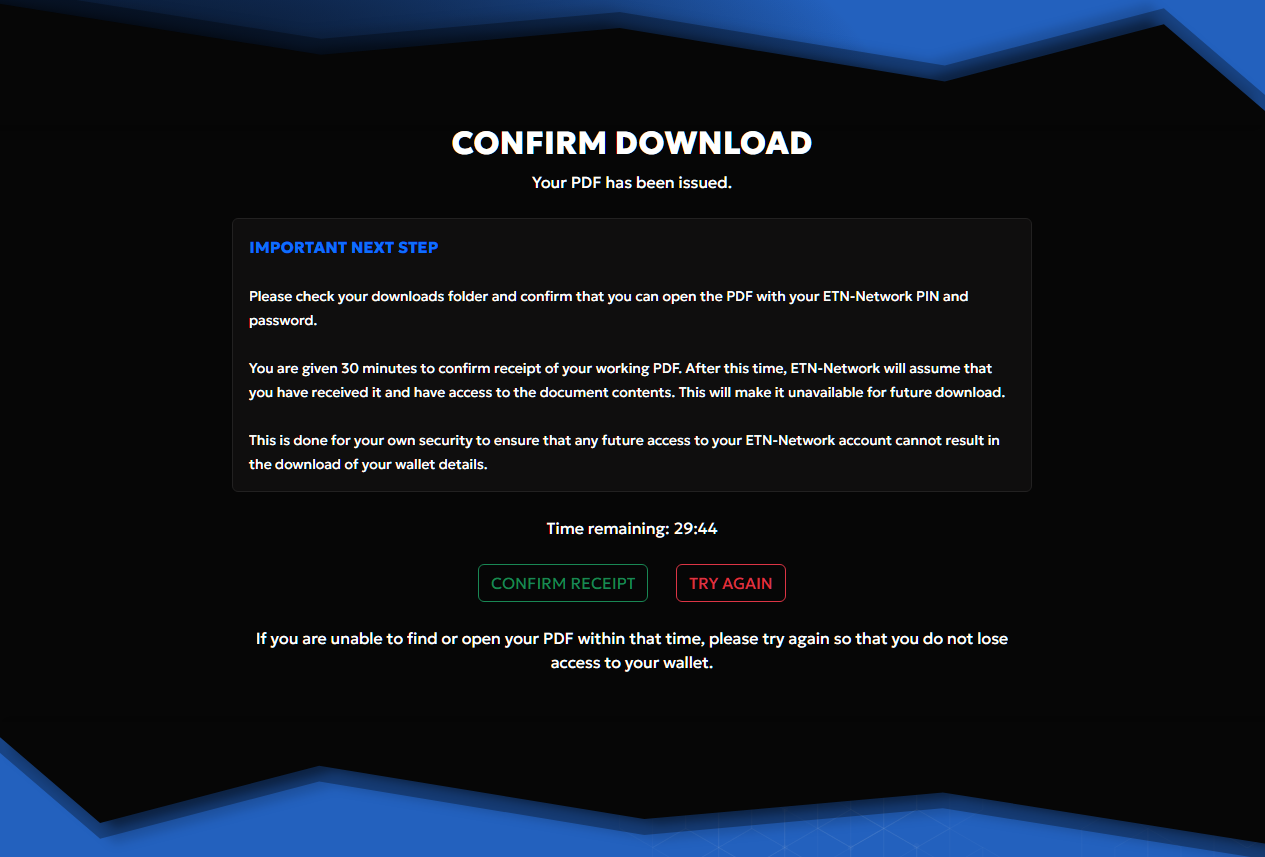
Step 7 – Confirm receipt or try again
It is important you ensure that you can find the downloaded file on your device and that you know how to access it.
You will be given 30 minutes to confirm receipt of this downloaded file that contains your Private Key and that you have access to it. If this has not been confirmed after 30 minutes, we will assume that it was successful and will consider it to be confirmed.
This is done to ensure the security of your wallet by preventing any further attempt to download the private key.
If you do have difficulty locating or accessing the file within the 30-minute window, click the TRY AGAIN button. This will allow you to read through the instructions and download it again.
When you are in receipt of your document and are confident you have access to it, use the CONFIRM RECEIPT button to immediately secure your account against future access.
Done!
To make use of this Private Key in a third party wallet application such as the Zypto App, MetaMask, Trust Wallet, etc. Please see this guide.
Require further help?
Join the Electroneum Discord server.
Alternatively, send a request to the Support Team and one of the team will respond within 5 days.
Follow the ETN-Network on social media for updates and announcements on Facebook and X.